This article explains how to install a local Dynamics 365 Finance & Operations (D365 F&O) development VM using a downloadable VHD and Hyper-V.
Prerequisites
- Register Azure account
- An account able to log into LCS
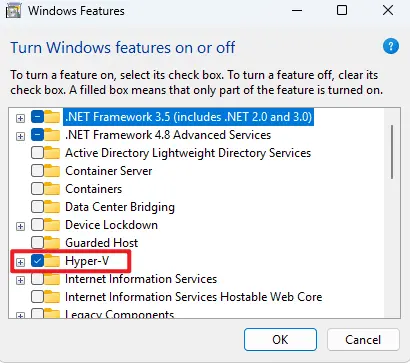
- Hyper-V enabled on the host machine

Download
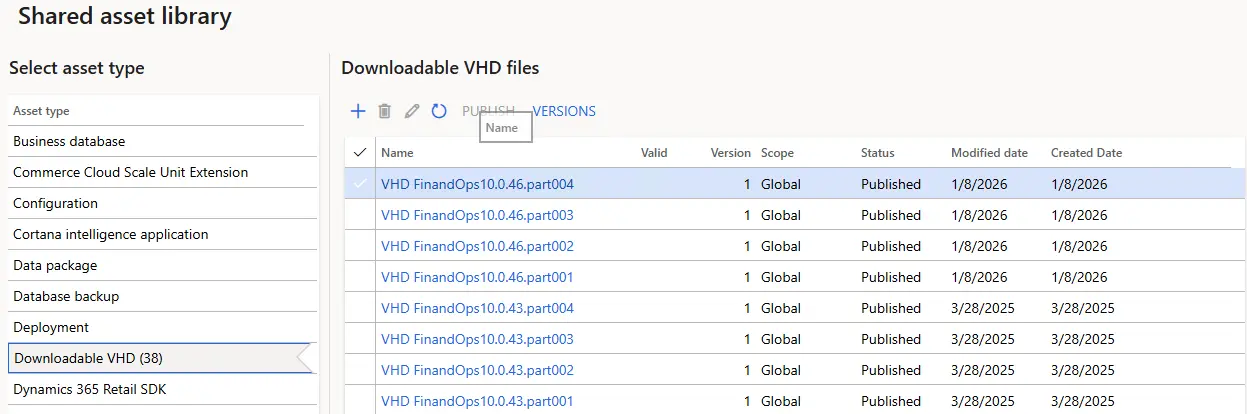
go to LCS > Shared Asset Library
Downloadable VHD
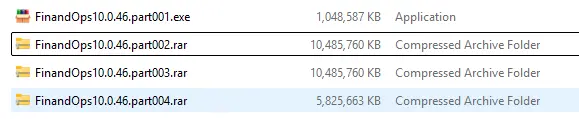
Deployment
Extract and Import VHD
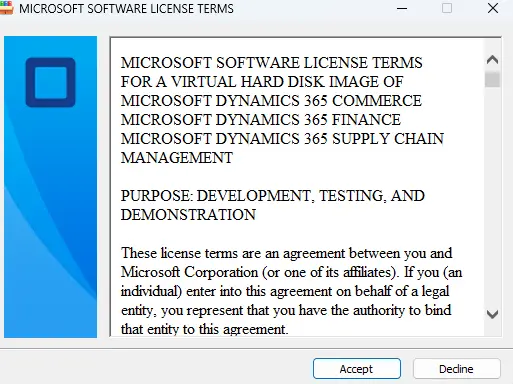
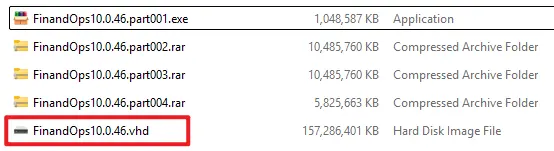
Extract the downloaded VHD package
Create Virtual Machine
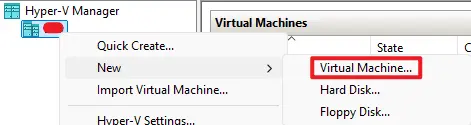
Open Hyper-V Manager > New > Virtual Machine
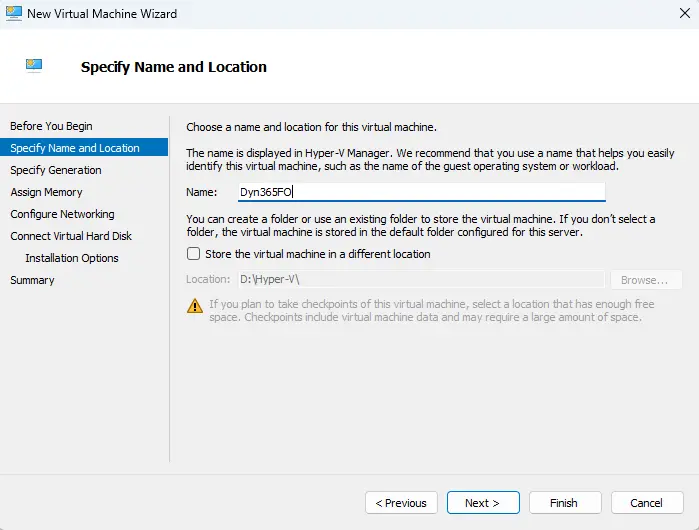
Specify name and Location
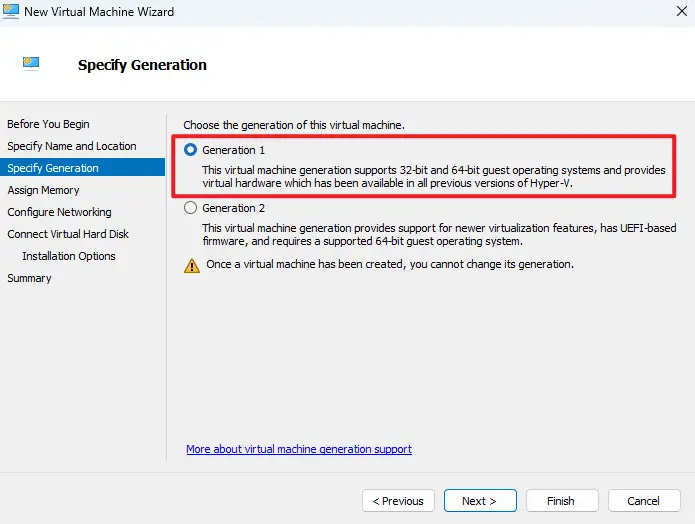
Generation
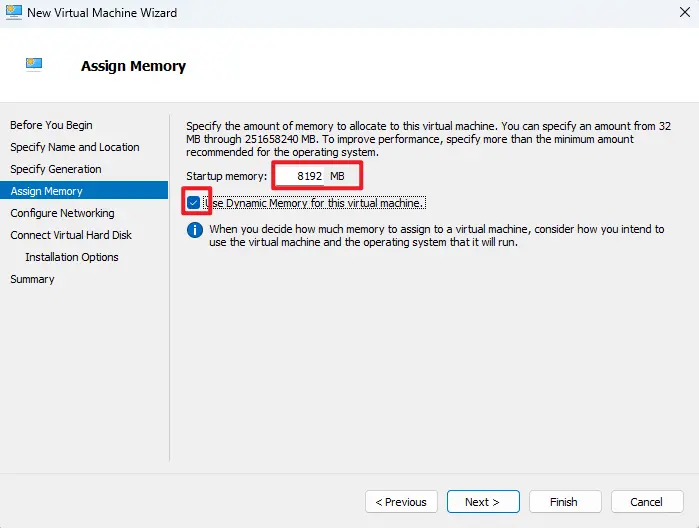
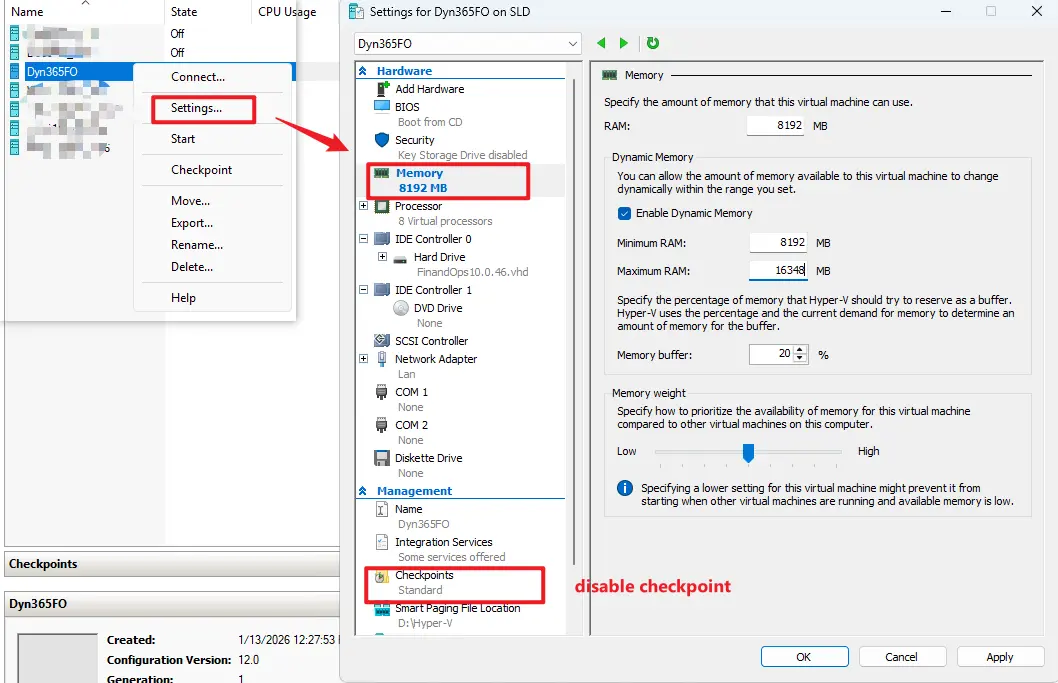
Memory
refer to System requirement
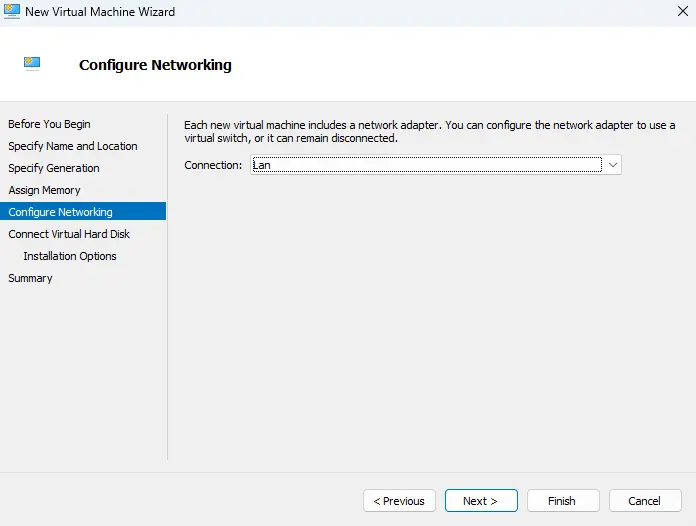
Network
Harddisk
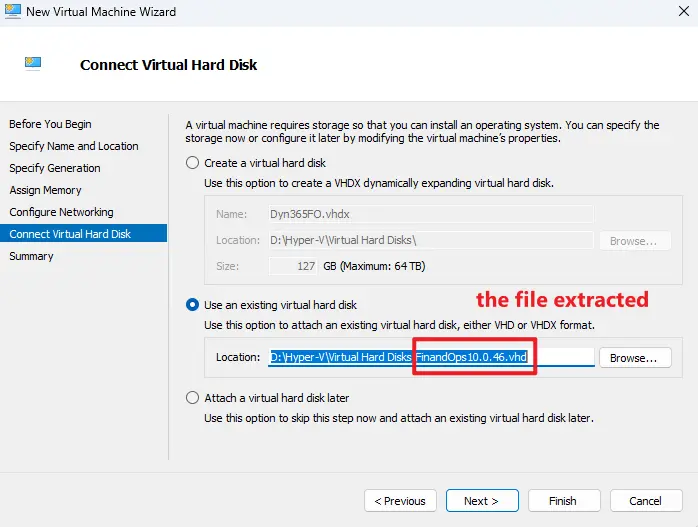
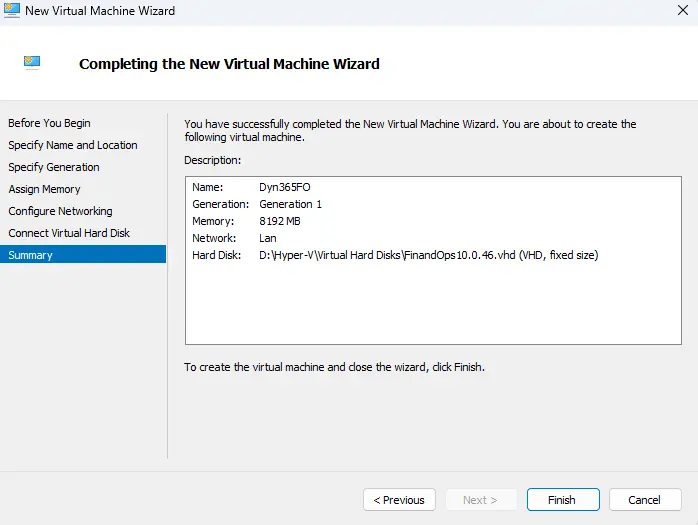
Summary
Setting before 1st run
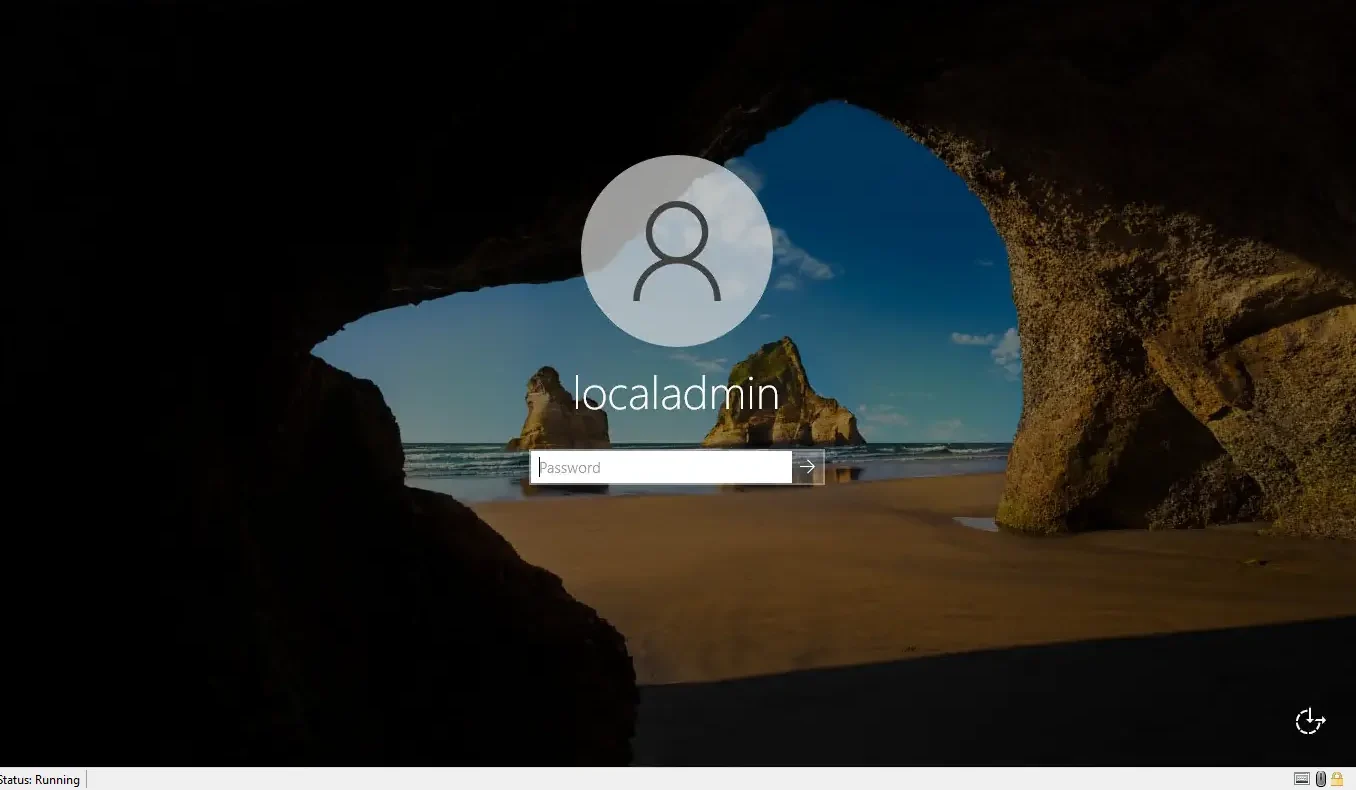
using Remote Desktop Connect
Azure App Registration
The local VM requires an Azure AD application for authentication.
Register the Application
Go to Azure Portal > Microsoft Entra ID > App registrations
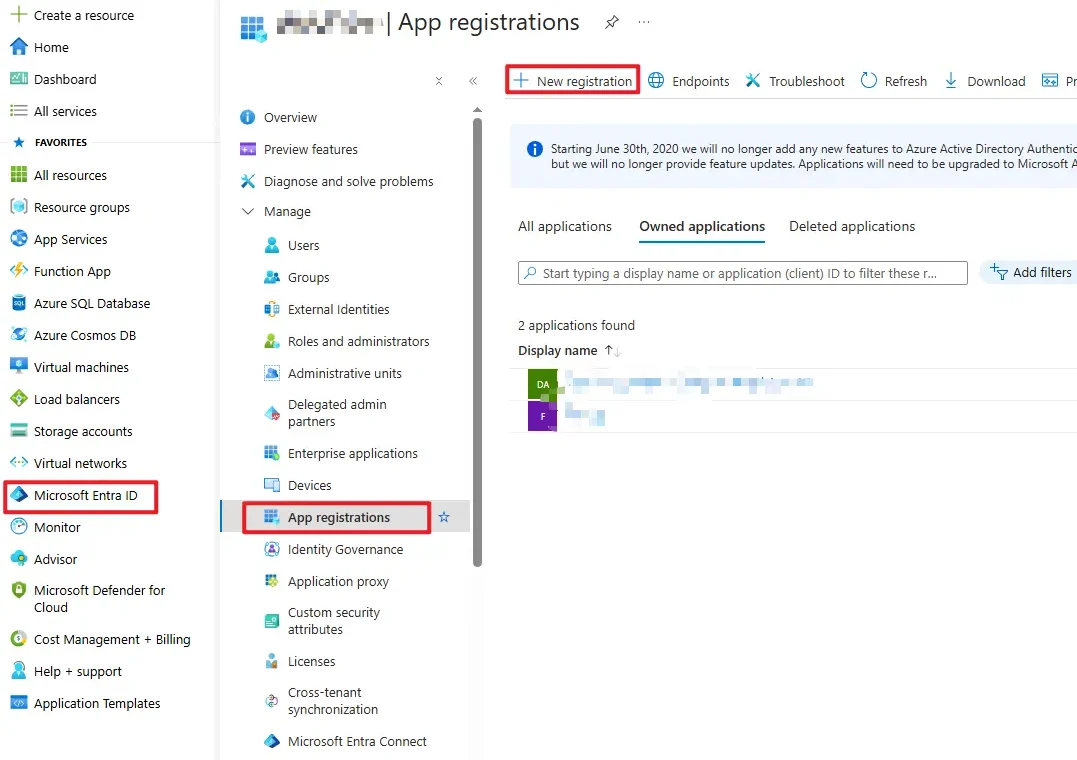
Create a new application:
- Name: Any descriptive name
- Supported account types: As required by your tenant
- Redirect URI
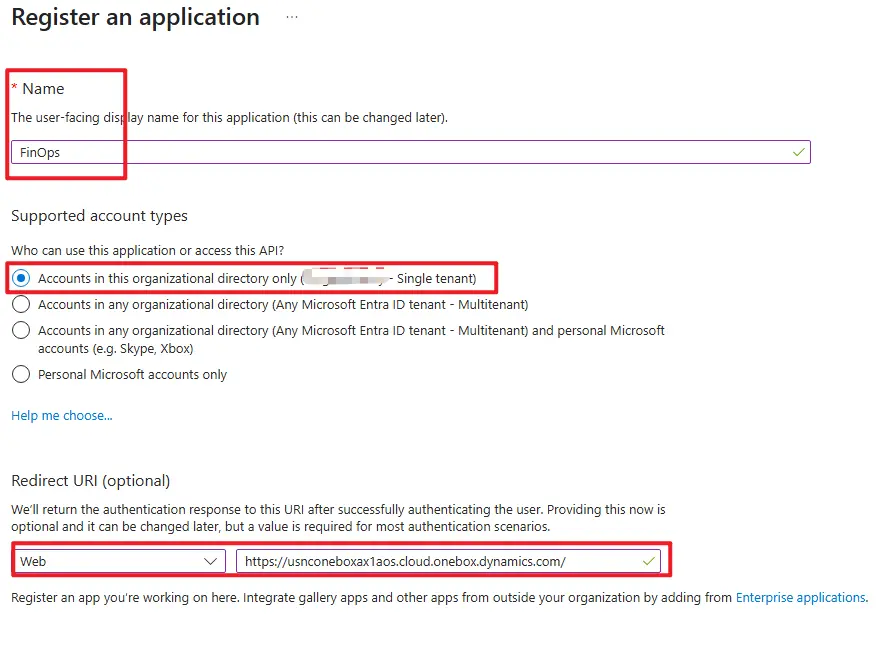
     Type: Web
     URL: https://usnconeboxax1aos.cloud.onebox.dynamics.com/
Add Additional Redirect URI
Navigate to Authentication and add:
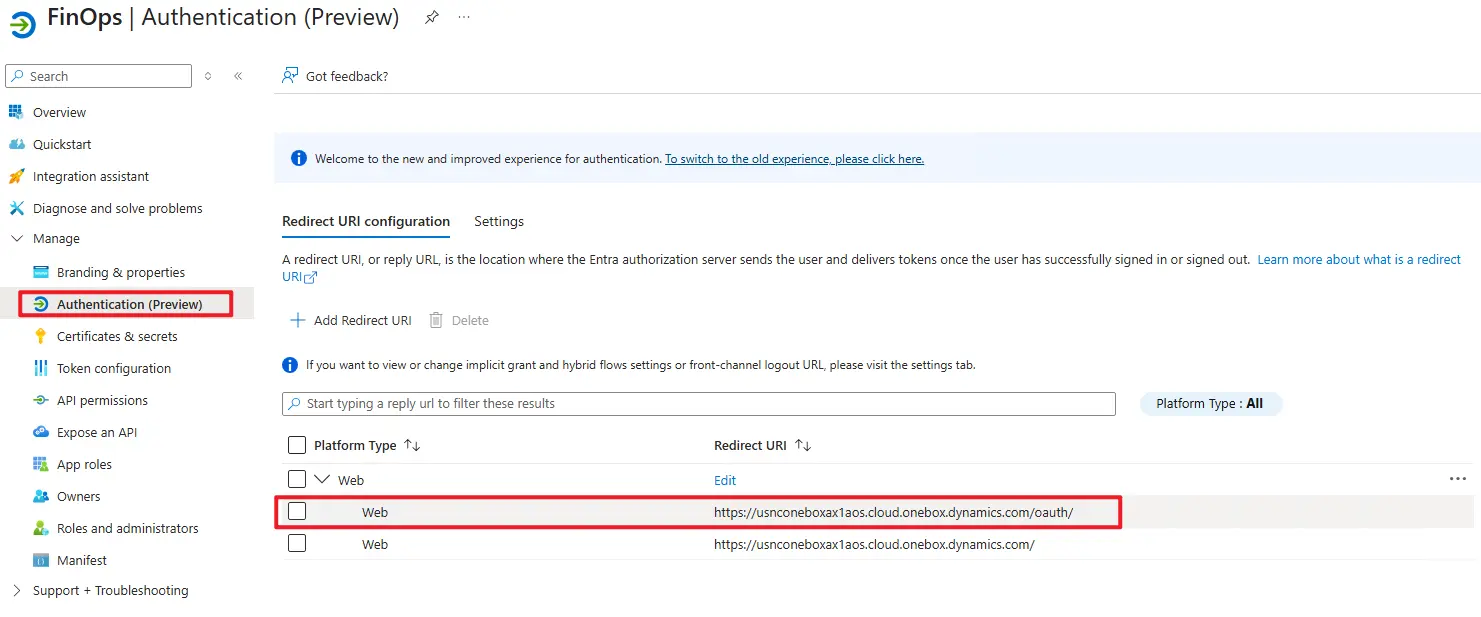
Type: Web
URL: https://usnconeboxax1aos.cloud.onebox.dynamics.com/oauth
Generate Self-Signed Certificates
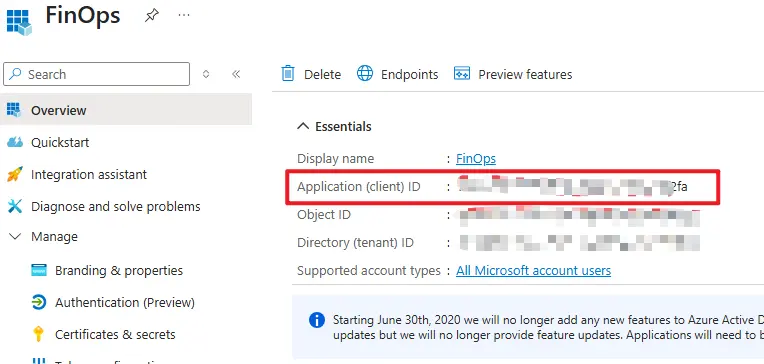
Copy the Application (Client) ID

Run the Generate Self-Signed Certificates script

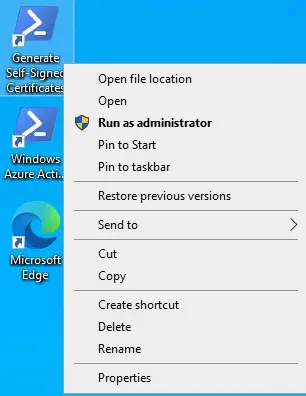
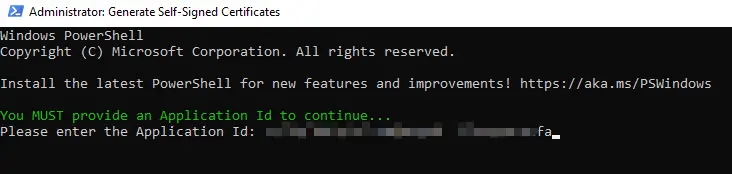
- Verify the script completes successfully

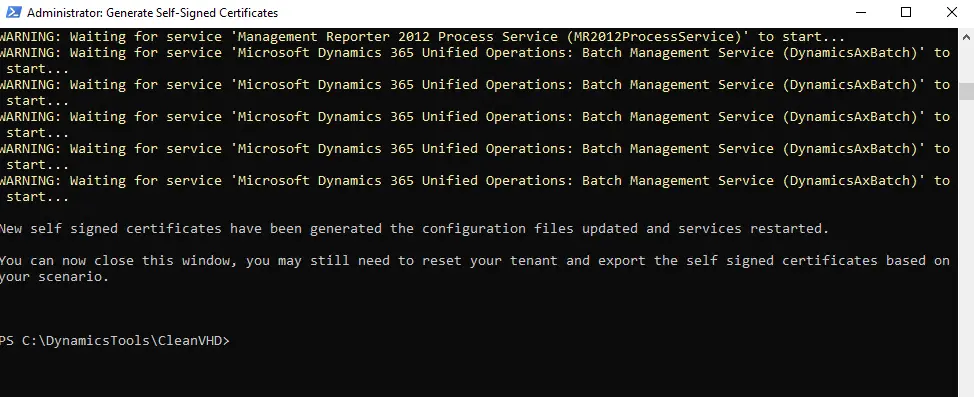
Virtual Machine Configuration
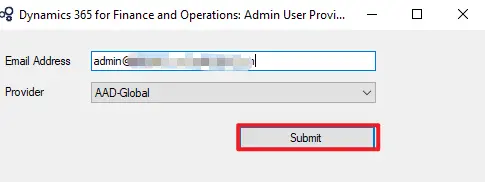
Add your email address as Admin
AOSService > PackgesLocalDirectory > bin > AdminUserProvisioning
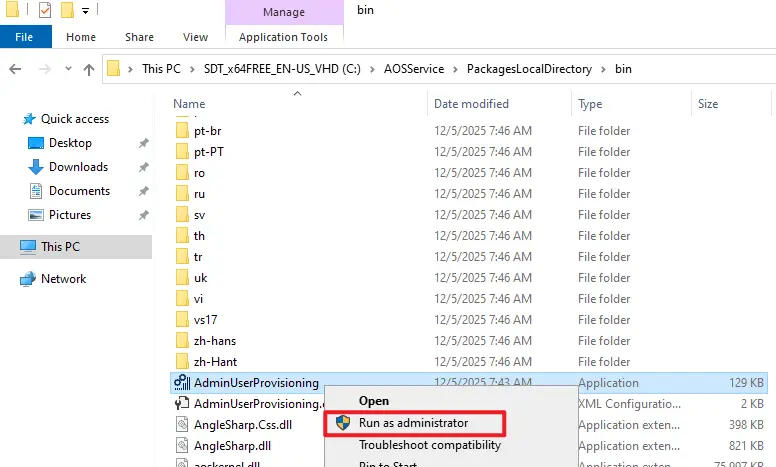
Default Passwords
Use the following credentials for initial access:
Administrator / pass@word1
Axdbadmin / AOSWebSite@123
Reference:
https://learn.microsoft.com/en-us/dynamics365/fin-ops-core/dev-itpro/dev-tools/vhd-setup
1 thought on “Install Dynamics 365 Finance & Operations Demo Environment”